

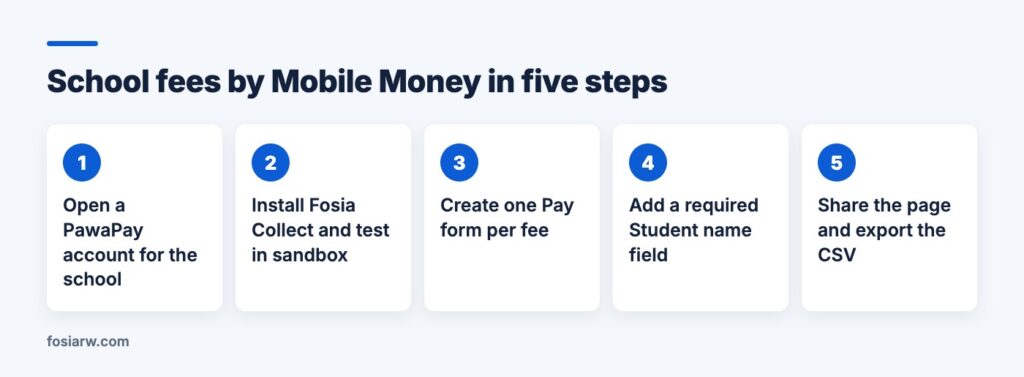
In short: a school can take school fees by Mobile Money on its own WordPress website with Fosia Collect, a free plugin: one Pay form per fee, a fixed amount, and a required field such as “Student name and class” so every payment says which pupil it is for. Parents pay with MTN MoMo, Airtel Money, M-Pesa or Orange Money and approve with their PIN; the money goes straight to the school’s own payment account, and the bursar sees each payment, the total per form and a CSV export.
At the start of every term, the same scene plays out in schools from Kigali to Kampala and Lusaka: queues at the bursar’s office, parents sending money to a staff member’s personal number, and screenshots of Mobile Money messages piling up in a WhatsApp chat. The money arrives, but nobody can say quickly which pupil has paid. This guide shows how to put a proper fee payment form on the school’s website, and how to set it up so the records are clean from day one.
Fees are not fundraising
A fundraiser asks the community for gifts towards a goal: a library roof, a water tank, a needy pupil’s fees. We covered that in our guide to school and community fundraising by Mobile Money. Fee collection is different. The amount is set by the school, every payment belongs to a named pupil, and the bursar must reconcile it with the school’s records. That calls for a simple Pay form, not a campaign page with a progress bar.
Fosia Collect is built for exactly that. It is a free WordPress plugin from FOSIA in Kigali that adds a Donate or Pay form to any page, without WooCommerce, with no licence key, no limit on forms or payments and no commission. The only fees are PawaPay’s own processing fees.
How one form per fee keeps the books clean
Create a separate form for each fee you collect online. The dashboard then shows a total for each form, and the bursar never has to sort a single list by hand. A typical set for a secondary school could look like this:
| Form | Amount setting | Extra field (required) |
|---|---|---|
| Term 1 fees, Senior 1 to 3 | One fixed amount | Student name and class |
| Term 1 fees, Senior 4 to 6 | One fixed amount | Student name and class |
| Fees by instalment | “Other” with a minimum and a maximum | Student name and class |
| Exam registration | One fixed amount | Student name and index number |
| School trip | One fixed amount | Student name and class |
Each form offers either one fixed amount, or up to six quick amounts plus “Other” within a minimum and a maximum. The instalment form is useful when your school accepts part payments: set the minimum to your smallest accepted instalment and the maximum to the full term fee.
The extra field is the key. In the block’s Fields panel, type its label and choose Required. The answer appears in the payments list, in the CSV export, in the e-mail the school receives and on the parent’s receipt. Ask only what you need to match the payment: the pupil’s name and class are enough. Keep the “Give anonymously” option off for fees, and make the payer’s name required.
Set it up, sandbox first
You need WordPress 6.3 or later, PHP 7.4 or later, HTTPS and the school’s own PawaPay merchant account. A sandbox account to test is free; the live account is opened after the school’s documents are checked. Open it in the name of the school or its owning body, never a staff member: it protects the bursar as much as the parents. Our PawaPay setup guide explains the account itself.
- Download Fosia Collect from its page on pay.fosiarw.com (it is not on WordPress.org) and upload the zip under Plugins, Add New, Upload Plugin.
- In the guided setup, choose Sandbox and paste the API token. It is tested before it is saved and stored encrypted.
- Copy the callback address into your PawaPay dashboard. It is optional, but confirmation is faster.
- Create a “School fees” page and add one Fosia Collect block per fee, with the type set to Pay.
- Pay with a PawaPay sandbox test number, check that the payment shows as paid, then switch to your live token.
What the parent sees
The parent opens the fees page from the link in the school’s WhatsApp group or newsletter, picks the right form, types the pupil’s name and class, enters a Mobile Money number and approves the payment with their PIN on a secure payment page. Back on the site, they see the real status read from the school’s payment account: paid, not received yet, or failed with the reason in plain words.
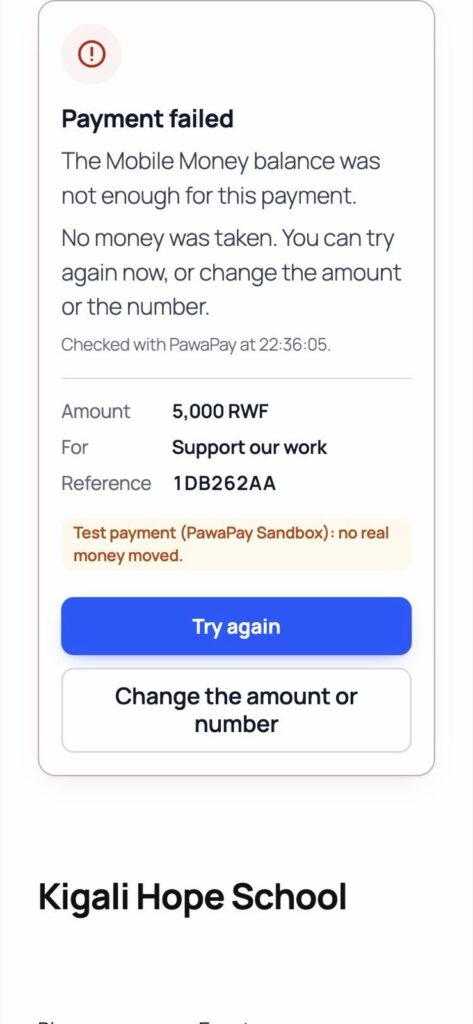
A parent is never thanked for money that did not arrive. Once the payment is confirmed, an e-mail receipt is sent if the parent gave an address. If the parent closes the page too early, Fosia Collect keeps checking in the background and the payment still appears as paid once the account confirms it.
What the bursar gets
Every payment is checked with the school’s own payment account and shows as paid only with exactly the amount and currency asked; otherwise it is marked “To check”. The bursar works from:
- a dashboard with this month’s total, the total since the start and the total per form;
- a payments list with filters by status, form and date, and a CSV export for the accounts;
- an e-mail to the school for each confirmed payment;
- full or partial refunds to the number that paid, for example when a parent paid twice.
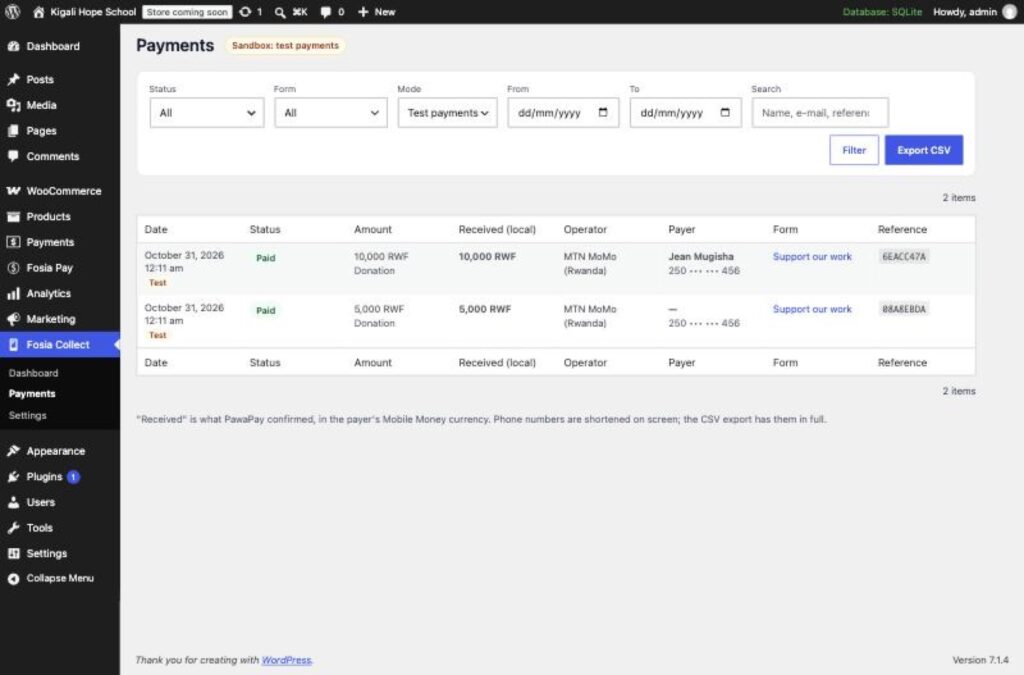
Fosia Collect records payments; it does not keep each pupil’s fee balance. Import the CSV into your school management software or spreadsheet, where the pupil’s name and class let you match each line in minutes.
The start-of-term rush
Two worries come up often. First, many parents pay from the same school Wi-Fi on opening day: they are not blocked, because only payments that really start are counted, per phone number, per browser and per connection, and the limits can be raised in the settings. Second, page caches: the form works on cached pages, and its status pages are never cached.
No school website yet? Fosia Connect gives you payment links, QR codes and a payment page without WordPress. Our article on getting paid without a website compares the options.
Frequently asked questions
Can a parent pay for two children at once?
Ask for one payment per child. Each payment then carries one pupil’s name and class, which keeps the reconciliation simple.
Can parents set up an automatic monthly payment?
No. Mobile Money asks the payer to approve every payment on the phone, so there is no automatic debit. Send a reminder with the link before each deadline instead.
Can relatives abroad pay the fees?
Yes, if they have a Mobile Money wallet in a country enabled on the school’s payment account. A form can also be priced in USD or EUR, with an estimate in the payer’s currency before they approve.
Which networks will parents see?
Those enabled on the school’s payment account, among 21 African countries, for example MTN MoMo and Airtel Money in Rwanda or Uganda, or M-Pesa in Kenya.
Does FOSIA see or hold the fees?
No. Payments settle in the school’s own payment account, and payers’ details stay in the school’s own database, erased after the period you choose.
Ready for a calmer start of term? Download Fosia Collect free, or book a free call and the FOSIA team will help you set up your fee forms.