

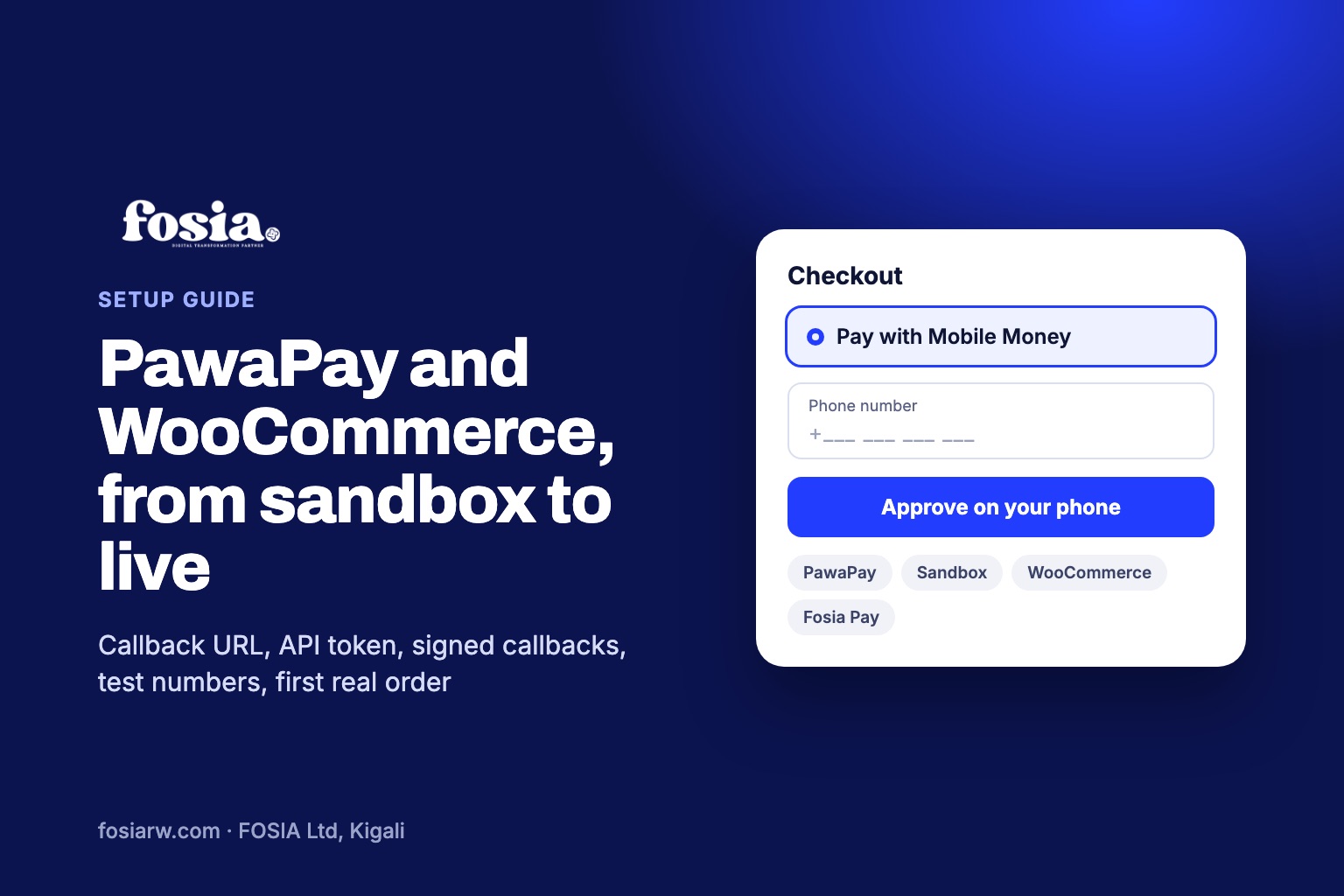
In short: a PawaPay WooCommerce setup with Fosia Pay takes four stages: open a free PawaPay sandbox account, add the callback URL from Fosia Pay in the PawaPay dashboard, generate an API token and paste it into Fosia Pay, then test with PawaPay’s sandbox numbers. Once PawaPay has approved your onboarding, you repeat the callback and token steps in production, place one small real order, and you are live.
Connecting a payment provider is where many store owners get stuck: two dashboards, two environments, a token that is shown only once. This guide follows the exact order that works, using PawaPay’s public documentation for the PawaPay side and the Fosia Pay guide for the WordPress side. If you are new to the product, read our overview of Mobile Money on WooCommerce with Fosia Pay first.
Before you start: what you need
- A WordPress site with HTTPS, running WordPress 5.8 or later, WooCommerce 5.0 or later and PHP 7.4 or later (Fosia Pay’s requirements).
- Fosia Pay installed. Lite is a free download on pay.fosiarw.com, coming to WordPress.org; you get the ZIP from your account and upload it under Plugins, Add New, Upload Plugin. Paid plans receive a license key by email.
- A PawaPay account. PawaPay’s plans page says every account comes with a free sandbox environment, and the Standard plan has no setup or monthly fees (transaction fees apply).
- The right role in PawaPay. According to PawaPay’s dashboard docs, callback URLs and API tokens can only be managed by users with the Technical Administration role.
Stage 1: open your sandbox account
Sign up from the “Create account” button on PawaPay’s plans page. You receive sandbox access first. PawaPay’s How to start guide explains that the sandbox is completely isolated from production, so no real money moves, and that production access is granted after you complete onboarding on your sandbox account. You can start testing right away; onboarding can happen in parallel.
Stage 2: callback URL first, then the API token
The order matters here. PawaPay’s API tokens page warns that you need to configure your callback URLs before you can generate API tokens.
- Copy the callback URL from WordPress. Go to WooCommerce, Settings, Payments and open Fosia Pay. The settings page shows your store’s callback URL.
- Paste it in PawaPay. In the PawaPay dashboard, open System Configuration, then Callback URLs, and enter it in the Deposits field, as the Fosia Pay guide describes. If your server sits behind a firewall, PawaPay asks you to whitelist its IP addresses so callbacks can reach you.
- Generate the token. On the API tokens page, press “Generate token”, then use “Copy to clipboard”. PawaPay does not store the token after showing it, so paste it immediately.
- Paste the token in Fosia Pay. Back in WooCommerce, Settings, Payments, Fosia Pay, paste the sandbox token and save. On a paid plan, paste your license key in the same settings; without a valid key, Fosia Pay runs in Lite mode.
Turn on signed callbacks
In the same System Configuration area, PawaPay’s API tokens documentation describes a “Signed callbacks” feature that makes PawaPay sign every callback. Turn it on. Fosia Pay verifies the signature of each callback (RFC 9421) and ignores unsigned or invalid notifications, so a fake message cannot mark an order as paid.
Stage 3: test with sandbox numbers
PawaPay publishes sandbox test numbers for each operator. Each number always gives the same result, so you can try success and failure on purpose. For MTN in Rwanda, for example:
| Test number | Result in sandbox | What to check in WooCommerce |
|---|---|---|
| 250783456789 | Completed | The order moves to Processing on its own |
| 250783456039 | Failed: payment not approved | The order is not marked as paid |
| 250783456029 | Failed: payer not found | The order is not marked as paid |
| 250783456129 | Stays submitted | The order waits; nothing is marked as paid too early |
Two things to know. First, PawaPay notes that in sandbox the customer does not authorise the payment, so you will not see a PIN prompt on any phone. Second, your sandbox account has access to all providers on PawaPay’s platform, even ones you are not approved for in production yet, so you can test early.
Repeat the test for each country you plan to sell in, using numbers from that country’s list. The Fosia Pay menu in wp-admin shows a Sandbox or Live indicator and a connection test, which helps you confirm which token is active.
Stage 4: go live
PawaPay’s Going live page says the only things that change between sandbox and production are the base URL and the authentication token. In practice, with Fosia Pay:
- Finish onboarding. PawaPay asks how you will use it, which markets you operate in, and for a KYC questionnaire. Production access follows.
- Repeat Stage 2 in production. Sandbox and production tokens are different. In the production dashboard, add the same callback URL, generate a new token, and turn on signed callbacks again.
- Replace the token in Fosia Pay. Fosia Pay has no separate switch: you swap the sandbox token for the live one.
- Place one real, small order. PawaPay’s checklist for live tests: a phone with a number on that operator, an active Mobile Money wallet, enough balance, and being ready to enter the PIN roughly 1 to 20 seconds after the payment starts.
Coverage in production depends on what PawaPay has enabled on your merchant account. Some operators, such as M-Pesa in Kenya, are only available on PawaPay’s Enterprise plan; our guide on M-Pesa on WooCommerce in Kenya explains what that means.
When a confirmation is late
PawaPay says it makes up to 8 delivery attempts for a callback over about 25 minutes. Fosia Pay adds its own safety net: paid orders on the hosted page are re-checked on a schedule from 2 minutes to 6 hours, and refunds and payouts are re-checked until PawaPay reports them completed or failed. So a short outage on your server does not leave a paid order stuck as unpaid.
Running several client stores? The Agency plan ($79.99 a year) includes a multi-site callback router, so up to 25 sites share one PawaPay account and one callback URL. Plans are on the pricing page.
Frequently asked questions
Why can I not generate an API token in PawaPay?
PawaPay requires callback URLs to be configured first, and only users with the Technical Administration role can manage tokens. Check both.
I lost my API token. What now?
PawaPay does not store tokens after showing them. Generate a new one, paste it in Fosia Pay, then revoke the old one, knowing that revoking stops any payment still using it.
Why did no PIN prompt reach my phone during tests?
In sandbox, PawaPay simulates the result without any authorisation on a phone. You will only see a real PIN prompt in production.
Can I use the same callback URL for sandbox and production?
Yes. The callback URL comes from your store, so you enter the same one in both dashboards. Only the token changes.
Can someone set this up for me?
Every paid Fosia Pay license includes a free setup call, where we go through these steps with you.
Ready? Download Fosia Pay Lite, open your PawaPay sandbox and follow the four stages above. If you would rather not touch any setting, book a free call or let our Digital-as-a-Service team run it for you.