

In short: there are three ways to set up M-Pesa WooCommerce payments in Kenya: show your Till or Paybill number and check each payment by hand, build your own connection on Safaricom’s Daraja platform, or connect the store to a payment gateway such as PawaPay through a plugin like Fosia Pay. Before you choose the gateway route, check one thing: PawaPay lists M-Pesa in Kenya as available on its Enterprise plan only, so you need PawaPay’s approval first.
In Nairobi, Mombasa or Kisumu, a customer who wants to buy online expects to pay the way they pay for everything else: with M-Pesa. If your WooCommerce store only offers cards, part of your visitors will stop at checkout. This guide compares the three routes honestly, so you can pick the one that fits the size of your shop today and still works when you grow.
What Kenyan shoppers expect at checkout
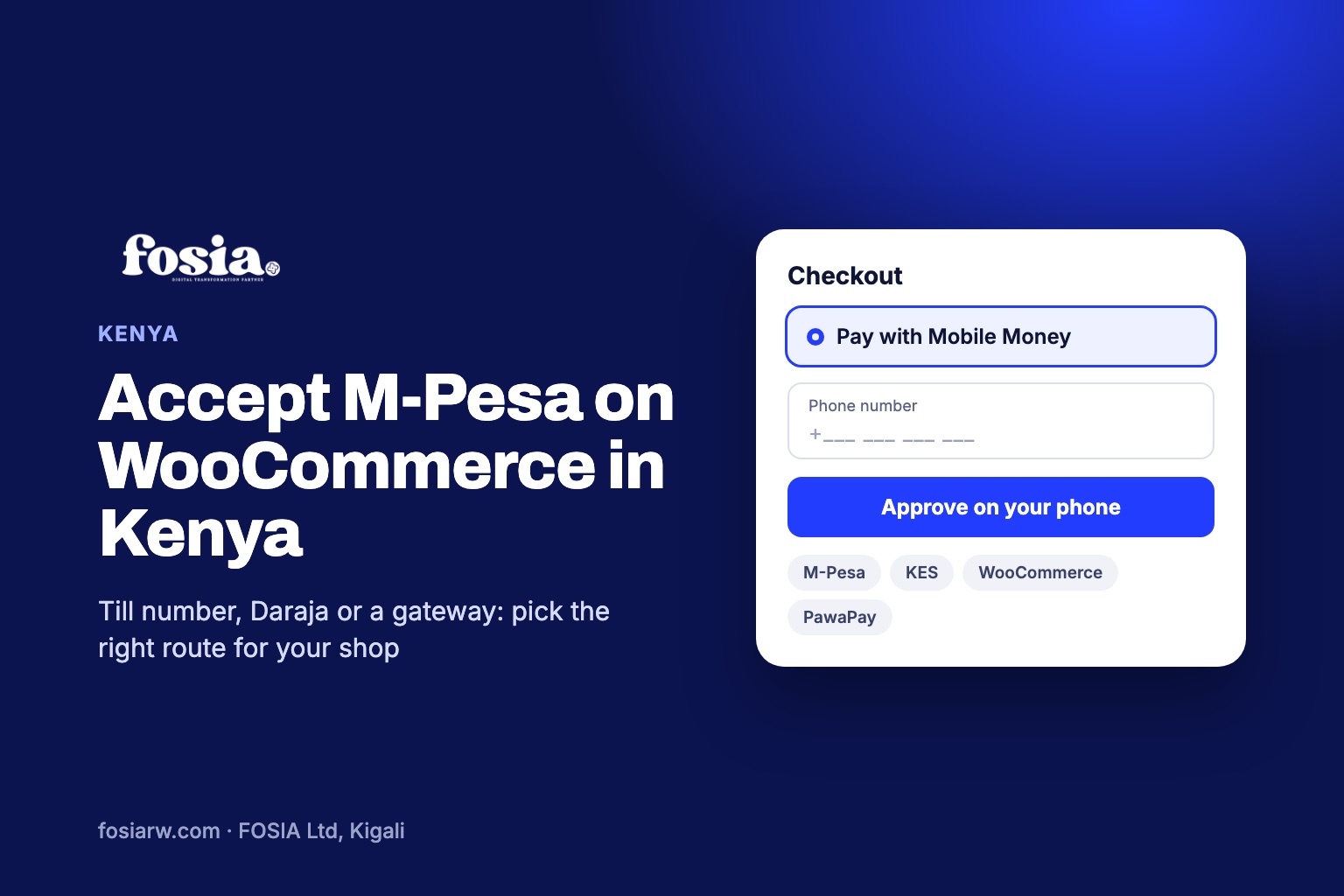
Kenyan customers already know two ways of paying a business with M-Pesa. Safaricom’s Lipa na M-Pesa offers Buy Goods (a Till number) and Paybill (a business number plus an account number). Both are familiar from shops and bills. Online, the smoothest experience is different: the customer types a phone number, a prompt appears on the phone, they enter their M-Pesa PIN, and the order is confirmed without any copying of numbers.
So the real question is not “can I take M-Pesa?” but “how much manual work am I ready to do for each order?”
Option 1: a Till or Paybill number and manual checks
The quickest start is to add a “pay by M-Pesa” instruction on the checkout or thank-you page: “Pay KES 3,500 to Till number X, then send us the confirmation code.” You then match each M-Pesa message to an order and mark it as paid yourself.
- Good for: a few orders a week, a shop that is just testing online sales.
- Weak points: the customer leaves your site to pay, typing mistakes happen, orders wait until someone checks the phone, and a screenshot sent on WhatsApp is not proof that money arrived.
It works, but it does not scale. At twenty orders a day, matching messages becomes a job of its own.
Option 2: build your own connection on Daraja
Safaricom’s developer portal, Daraja, gives access to Safaricom and M-Pesa APIs. A developer can use it to send the payment prompt to the customer’s phone and receive the result on your site.
- Good for: businesses with a developer, or an agency, who will build and maintain the integration.
- Weak points: it covers M-Pesa in Kenya only, the code is yours to secure and update, and selling to Uganda or Tanzania later means another project with other providers.
Option 3: a gateway, with PawaPay and Fosia Pay
Fosia Pay is a WooCommerce plugin built by FOSIA in Kigali. It connects your store to your own PawaPay merchant account, so the payment goes into your PawaPay wallet and FOSIA takes 0% commission (only PawaPay’s own processing fees apply). The same setup can cover 21 African countries and 40+ Mobile Money networks, so a Kenyan store that later sells in Uganda or Tanzania does not start again. Availability depends on what PawaPay has enabled on your merchant account.
The eligibility check to do first
On its plans page, PawaPay says some operators have extra launch requirements and are only available on its Enterprise plan, and M-Pesa in Kenya is one of them. Fosia Pay’s own FAQ says the same: M-Pesa in Kenya is reserved by PawaPay for approved (enterprise) merchants. In practice:
- Open a free PawaPay sandbox account and build your checkout there.
- Contact PawaPay’s sales team, explain your business and volumes, and ask whether you qualify for M-Pesa Kenya.
- Go live only once M-Pesa Kenya is enabled on your production account.
If you are not approved yet, keep Option 1 running in parallel so no customer is turned away.
The three routes side by side
| Route | Order marked as paid | Technical work | Other countries later |
|---|---|---|---|
| Till or Paybill, manual | By you, after checking messages | None | Repeat per country and network |
| Own Daraja build | Automatically, if built well | High, and ongoing | New project per provider |
| PawaPay with Fosia Pay | Automatically, after a signed confirmation | Install and configure | Same plugin, if PawaPay enables the market |
Setting up the gateway route, step by step
- Install the plugin. Download Fosia Pay Lite, a free download on pay.fosiarw.com (coming to WordPress.org), then upload it under Plugins, Add New, Upload Plugin.
- Connect PawaPay. In WooCommerce, Settings, Payments, open Fosia Pay and paste your sandbox API token. Copy the callback URL shown there into your PawaPay dashboard, and turn on signed callbacks in PawaPay. The Fosia Pay guide shows each screen.
- Test with sandbox numbers. PawaPay publishes test numbers for M-Pesa Kenya. In sandbox, 254703456789 returns a completed payment and 254703456039 a payment that was not approved, so you can see both outcomes in WooCommerce without real money.
- Go live. Once M-Pesa Kenya is enabled on your production account, replace the sandbox token with your live token and place one small real order.
Fosia Pay marks the order as paid only after verifying PawaPay’s signed confirmation (RFC 9421), so a fake notification cannot mark an order as paid.
Prices in shillings, even if your store is in dollars
Many Kenyan stores that sell to tourists or to the diaspora keep prices in USD. With Fosia Pay, the country, currency and network are read from the customer’s phone number and the store price is converted to the local currency, so the M-Pesa customer approves an amount in Kenyan shillings (KES). PawaPay’s provider list also shows that M-Pesa Kenya does not accept decimals in deposit amounts, which is one more reason to let the plugin handle the conversion rather than typing amounts by hand.
Lite or Pro for a Kenyan shop?
Lite is free, with unlimited payments on one site: the customer pays on a secure PawaPay page and comes back to your thank-you page. Pro ($19.99 a year, or $59 once for life) adds a native checkout where the prompt reaches the phone without leaving your store, a number check as the customer types, operator outage alerts, a one-tap retry and refunds from the order screen. Compare everything on the pricing page. Yearly licenses never renew automatically, and there is a full refund within 14 days.
If you also sell in Rwanda, our guide on MTN MoMo and Airtel Money on WooCommerce in Rwanda covers the networks there.
Frequently asked questions
Can a small shop in Kenya get M-Pesa through PawaPay?
PawaPay lists M-Pesa in Kenya on its Enterprise plan only, so it depends on PawaPay’s approval. Ask their sales team before you plan your launch around it.
Can I test M-Pesa before PawaPay approves my account?
Yes. PawaPay’s sandbox includes M-Pesa Kenya test numbers, so you can build and test the whole checkout without real money while you wait.
Is a Till number on the checkout page enough to start?
It is enough for a few orders a week. Beyond that, checking every M-Pesa message by hand slows deliveries and invites mistakes.
Can I keep card payments for foreign customers?
Yes. Fosia Pay handles Mobile Money only and works next to a card gateway such as Stripe or PayPal, so each customer picks the method they prefer.
What if I later sell in Uganda or Tanzania?
The same plugin and PawaPay account can cover other countries, as long as PawaPay enables those markets and networks on your merchant account.
Ready to try it? Download Fosia Pay Lite and build your M-Pesa checkout in sandbox today. Prefer to have it done for you? See our products, our Digital-as-a-Service plans, or book a free call.