

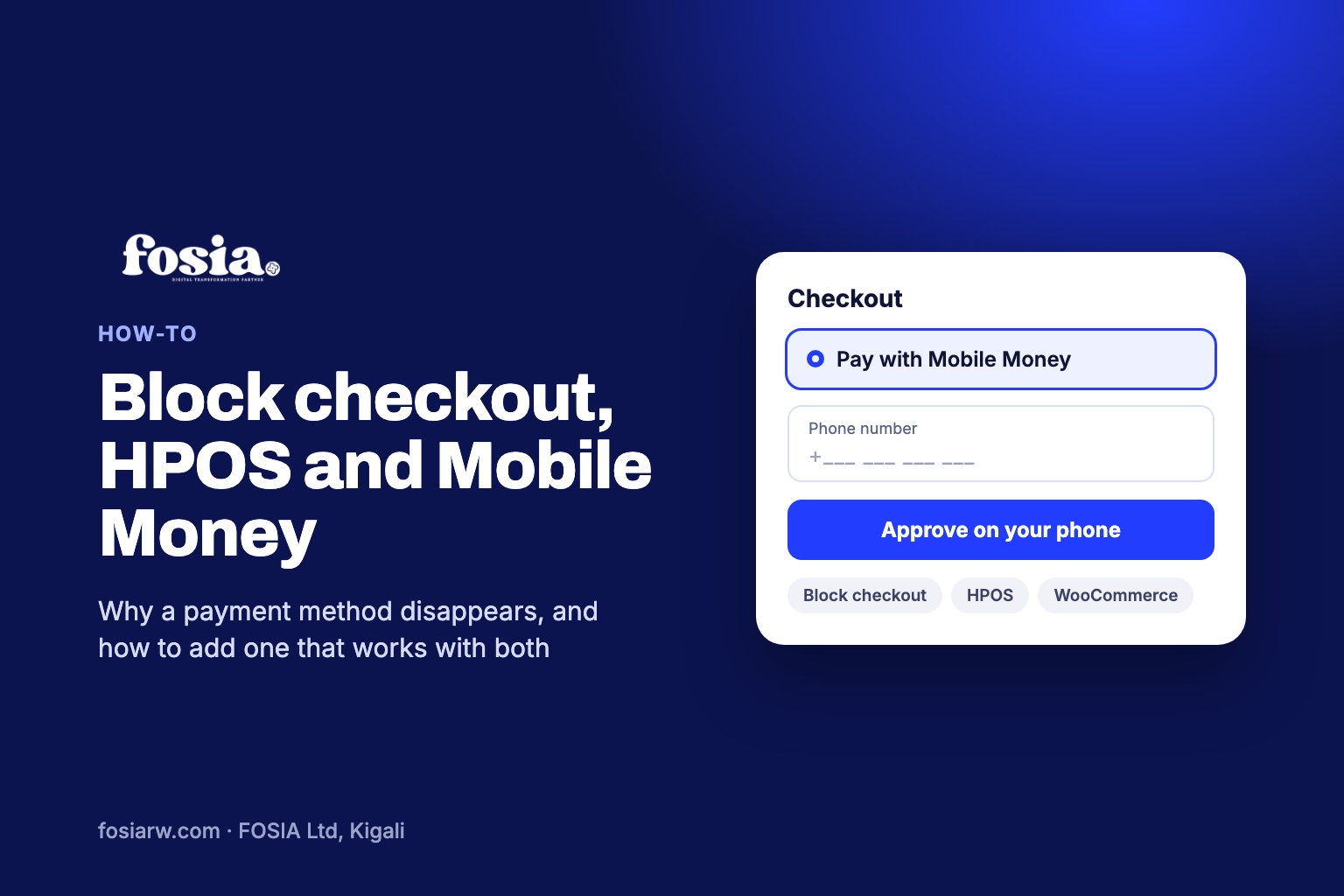
In short: since WooCommerce 8.3, new stores use the WooCommerce block checkout by default, and since 8.2 they store orders with HPOS (High-Performance Order Storage). A payment plugin built only for the old shortcode checkout may simply not appear, and WooCommerce can show “There are no payment methods available”. The fix is either to switch the checkout back to the classic shortcode, or to use a Mobile Money plugin that supports both, such as Fosia Pay Lite.
A store owner in Lusaka sets up a new shop, installs a Mobile Money plugin, enables it, and opens the checkout. Nothing. The payment option is just not there. Often the plugin works fine; the checkout is simply not the one it was built for. Here is what changed in WooCommerce, how to check your own store, and how to add a Mobile Money method that works whatever the setup.
Two changes that matter for payments
The block checkout
WooCommerce now builds the cart and checkout pages from blocks. According to WooCommerce’s documentation, stores started after WooCommerce 8.3 (November 2023) get the Cart and Checkout blocks by default, with no setup. Older stores often still use the classic checkout, built from a shortcode.
HPOS
HPOS moves orders out of the WordPress posts tables into WooCommerce’s own tables, for speed and reliability. It is on by default for new installations since WooCommerce 8.2. Existing stores are not migrated automatically: you switch it on under WooCommerce, Settings, Advanced, Features.
For a payment plugin, the two changes mean extra work. A gateway must register itself with the block checkout to appear there, and it must read and write orders the HPOS way.
The symptoms, and what they mean
- Your Mobile Money option is missing at checkout, while it shows as enabled in the payment settings: the gateway is probably not compatible with the Checkout block.
- “There are no payment methods available”: WooCommerce shows this when only incompatible gateways are active.
- The HPOS switch is greyed out: at least one active extension has not declared HPOS compatibility. The Features page links to the list (“View and manage”).
Check your store in five minutes
- Find your checkout type. Open the Checkout page in the editor. If you see a Checkout block with inner blocks such as Payment Options, you use the block checkout. If you see a single classic shortcode, you use the classic one.
- Read the warning. Select the Checkout block. If an active extension declares itself incompatible, the sidebar shows a warning and a button to switch to the classic checkout.
- Check HPOS. Go to WooCommerce, Settings, Advanced, Features and note which order storage is active and whether any plugin is flagged.
- Place a test order with your payment method in test or sandbox mode and confirm that the order status changes by itself.
Two ways to fix it
Option A: go back to the classic checkout
Select the Checkout block, click Transform and choose “Classic Shortcode”, then save. Do the same on the Cart page, since the two work together. This brings back older gateways, but you give up the newer checkout and every future improvement built for it.
Option B: use a gateway that supports both
This is the lasting fix. Fosia Pay Lite, free on WordPress.org, is listed as a WooCommerce payment gateway for both the classic checkout and the block-based Cart and Checkout, and as compatible with HPOS. It connects your store to your own PawaPay merchant account for Mobile Money in 21 African countries and 43 networks, depending on what PawaPay has enabled on your account. FOSIA takes 0% commission.
| Your store | What to watch | Fosia Pay |
|---|---|---|
| New store, block checkout, HPOS on | Every payment plugin must support both | Works as is |
| Older store, classic checkout, posts storage | Plan the move to HPOS with compatibility mode | Works as is, and after the move |
| Mixed: block checkout, HPOS off | Check the Checkout block warnings | Works as is |
Adding Fosia Pay to a block checkout
- In WordPress, go to Plugins, Add New, search for “Fosia Pay Lite”, install and activate.
- Go to WooCommerce, Settings, Payments, open Fosia Pay and paste your PawaPay sandbox token.
- Copy the callback URL into PawaPay’s callback settings for deposits and turn on signed callbacks.
- Open the Checkout page in the editor: Fosia Pay now appears among the payment options, with no shortcode needed.
- Place a sandbox order and check that it moves to Processing by itself.
The full walkthrough is in the Fosia Pay guide. On the block checkout, when a payment cannot start, Fosia Pay shows the reason, such as a wrong number or an operator outage, instead of a generic error. Pro ($19.99 a year or $59 for life) adds a native checkout where the prompt reaches the phone without a redirect.
For developers: what “block-ready” and “HPOS-ready” mean
If you maintain your own gateway, WooCommerce’s developer docs set out the two pieces:
- Block checkout: a client-side registration with
registerPaymentMethodfrom the blocks registry, and a server-side class extendingAbstractPaymentMethodType, registered on thewoocommerce_blocks_payment_method_type_registrationhook. - HPOS: declare compatibility with
FeaturesUtil::declare_compatibility( 'custom_order_tables', __FILE__, true )onbefore_woocommerce_init, fetch orders withwc_get_order, and change metadata through the order object (update_meta_data, thensave) instead of post meta functions.
Weighing whether to build a gateway yourself? Our comparison of the MTN MoMo API and a WooCommerce plugin lists the rest of the work.
Frequently asked questions
Should I move my old store to the block checkout?
Only once every payment and checkout plugin you rely on supports it. Check the Checkout block warnings first, then switch on a quiet day.
Can switching on HPOS make me lose orders?
WooCommerce recommends turning on compatibility mode first: it keeps the old and new tables in sync, so you can switch back if something goes wrong.
Can I return to the classic checkout later?
Yes. Transform the Checkout and Cart blocks into the classic shortcode and save.
Is the free Lite version enough for a block checkout?
Yes. Lite supports the classic and block checkout and HPOS, with unlimited payments. Pro adds the native checkout and refunds; the Fosia Pay guide compares them.
I use Divi. Does this change anything?
Divi 5 lays out your checkout with its own WooCommerce modules; the gateway part stays the same. See our French guide to Divi 5 and WooCommerce.
Missing payment option fixed? Download Fosia Pay Lite and test it on your block checkout today, or book a free call and we will look at your checkout with you.