

In short: with Fosia Pay, Mobile Money payment verification does not rely on a message saying “paid”. The customer approves with the PIN on their own phone, and before any order changes, Fosia Pay reads the payment from PawaPay with your own API token: only PawaPay’s answer, with the payment id, amount, currency and status, can mark an order paid. The money goes straight to your PawaPay account, and FOSIA never holds it.
Shop owners in Kampala or Yaoundé ask the same questions before switching on Mobile Money: can a customer fake a payment? Can someone send my site a false confirmation? What happens if the confirmation never arrives? This guide answers with what the Fosia Pay pages, the WordPress.org listing and its changelog actually say, plus PawaPay’s own documentation. It also lists what no plugin can do for you.
Where the money and the PIN go
Three parties touch a payment: the customer’s operator, PawaPay, and your store. FOSIA is not one of them. Its terms say it is a software publisher, not a payment institution: payments go directly from customers to your PawaPay account, and FOSIA never holds, receives or transfers your funds.
- On Fosia Pay Lite, the customer pays on PawaPay’s secure hosted page. The WordPress.org listing states that the plugin never sees or stores Mobile Money PINs.
- On Pro, the payment prompt reaches the customer’s phone without a redirect. The PIN is still typed on the phone, and the payment screen masks the phone number except the last digits, because screens get shared.
The checks before an order is marked paid
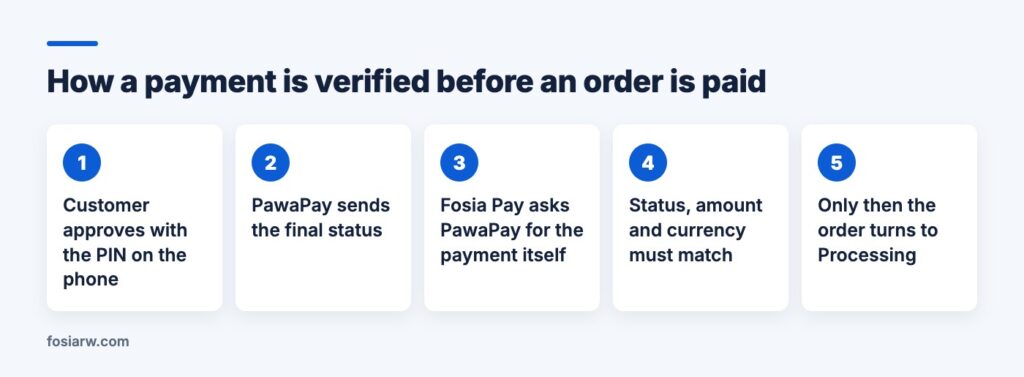
PawaPay’s API is asynchronous: its guide for merchants explains that when a payment reaches its final status, PawaPay sends a callback to the address you configured. That callback is where a fake confirmation could try to slip in. Here is how Fosia Pay Lite handles it, from its changelog:
- Every callback, signed or not, is confirmed by reading the payment from PawaPay with your own API token, and only PawaPay’s answer (payment id, amount, currency, status) is applied to the order (version 1.2.0, after a security audit on 31 October 2026).
- A payment made on another PawaPay account can never mark one of your orders paid (1.1.1). Even a genuinely signed callback for a payment your account does not have changes nothing.
- A completed payment with a different amount or currency puts the order on hold instead of marking it paid (1.0.5).
- A late “failed” callback can no longer turn an already-paid order into a failed one (1.0.5).
What about signatures? PawaPay can sign its callbacks, using the RFC 9421 standard described in its signatures documentation, so you can confirm they come from PawaPay and were not changed. Fosia Pay downloads PawaPay’s public keys to verify signed callbacks, but a signature alone is not enough to change an order: the reading from PawaPay decides. That is why signed callbacks are optional in the Fosia Pay docs.
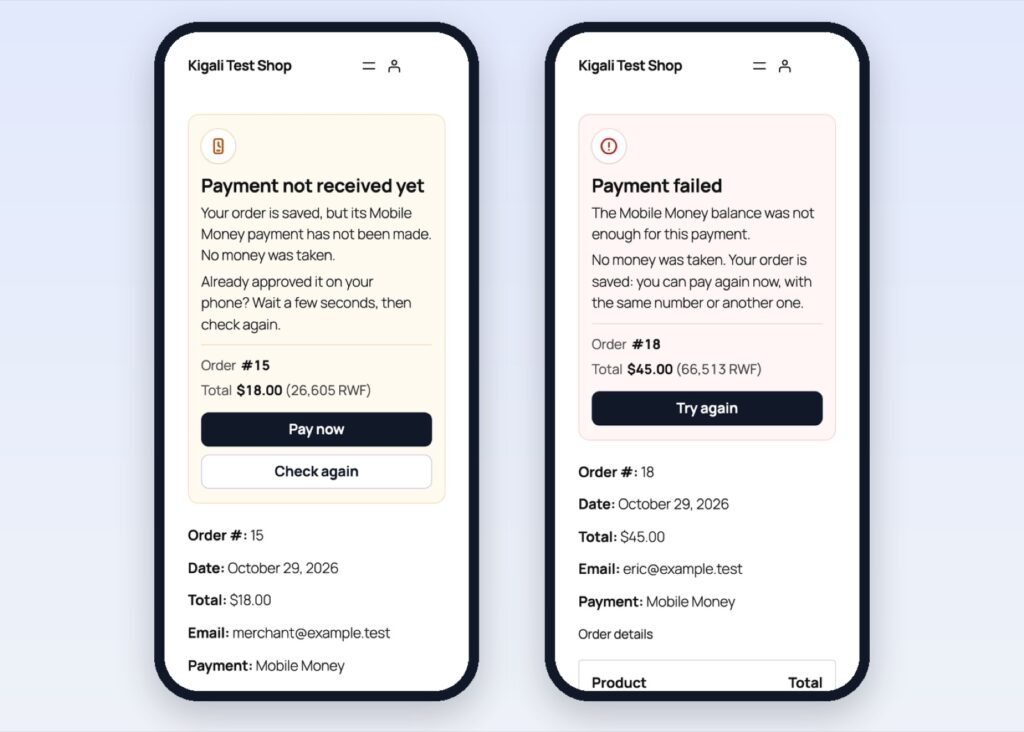
These steps map onto WooCommerce’s order statuses: Pending payment means no payment has been made, Processing means payment was received, and On hold means the payment needs your confirmation. An order on hold after a Mobile Money payment deserves a look before you ship.
When the confirmation is late, or never comes
PawaPay retries a callback that your site did not accept: up to 8 attempts over about 25 minutes. A site that is down or blocked by a firewall can still miss them all. Fosia Pay Lite covers that case too: payments are re-checked with PawaPay in the background for a few hours, so a customer who paid and closed the page is confirmed without any callback. If PawaPay itself cannot be reached, the order is left as it is and the checks continue.
The customer side matters as much. Fosia Pay reads the payment status before it shows the return page, so nobody sees “Thank you” for an unpaid order.
Your API token, your site and your code
The PawaPay API token is the key to your account, so version 1.2.0 tightened how it is kept:
- it is stored encrypted (AES-256-GCM) with a key made from your wp-config.php secret keys, so a stolen database or backup alone does not reveal it;
- it is no longer written into the settings page, which shows an empty field with “Saved: leave empty to keep it”;
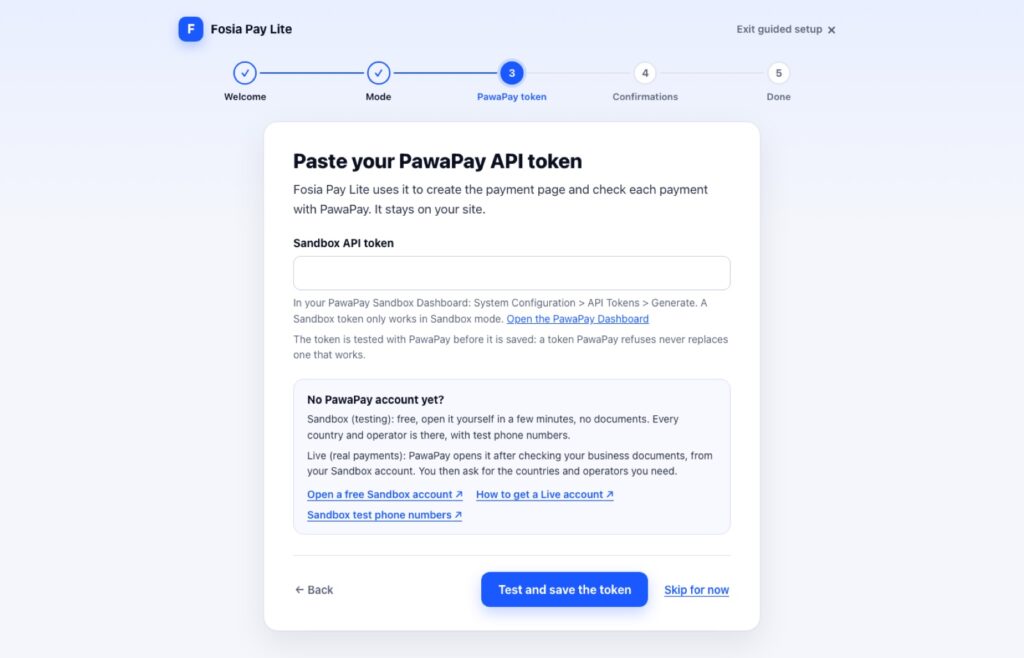
- a new token is tested with PawaPay before it is saved, so a refused token never replaces one that works.
Logs leave out phone numbers, tokens and payment details, and nothing is sent to FOSIA unless an administrator opts in. Lite is GPL software: its source is in the plugin files, so you or your developer can read it before trusting it with real payments.
What you still have to do yourself
No plugin protects a store whose WordPress admin is compromised, or a cashier who trusts a screenshot. Your part:
- Serve the store over HTTPS with a certificate from a trusted authority, as PawaPay requires for callbacks.
- Do not block PawaPay. If you use a firewall, allow the IP addresses PawaPay publishes for callbacks.
- Protect the accounts: strong admin passwords, up-to-date WordPress, plugins and theme (see our WordPress security guide), and two-factor sign-in on the PawaPay dashboard, which its plans page offers along with user roles.
- Never share the token with anyone who does not run the store.
- Ship on the order status, not on proof sent by the customer. A forwarded SMS or a screenshot is not a payment.
Frequently asked questions
Can a customer fake a payment with a screenshot?
Not in WooCommerce: only PawaPay’s own answer changes the order. A screenshot only fools a person, so train staff to check the order status.
Is Fosia Pay Pro safer than Lite?
The check is the same on every plan: every payment is verified with your payment account before the order is paid. Pro adds a “send it again” button that checks the first request first, so a customer is never charged twice.
Should I turn on signed callbacks in PawaPay?
It is optional. You can turn them on, and Fosia Pay checks every payment with PawaPay either way.
What about payment links and Fosia Connect?
The Fosia Connect page says every payment notification is checked before it reaches your site, and your account key is encrypted and never shown again.
Does FOSIA see my customers’ money or PINs?
No. Money settles in your PawaPay account, and PINs are typed on the customer’s phone or PawaPay’s page.
Want to see it working? Install Fosia Pay Lite for free and test it in sandbox with our PawaPay setup guide, read why payments fail in our guide to failed Mobile Money payments, or compare a plugin with a direct integration in MTN MoMo API vs a WooCommerce plugin. Plans are on the pricing page.