

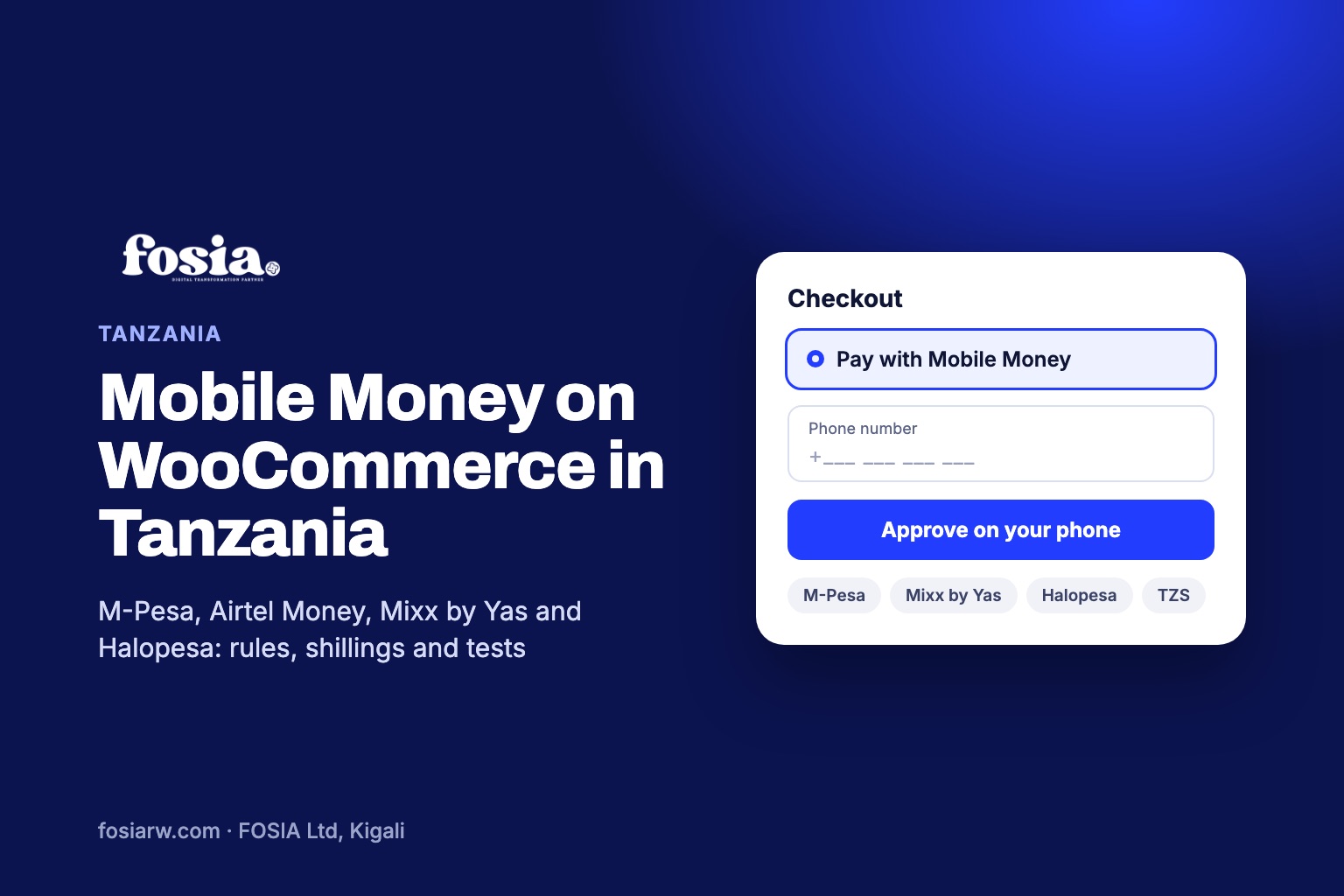
In short: to sell with WooCommerce in Tanzania, your checkout should reach the four Mobile Money networks PawaPay lists for the country: Vodacom M-Pesa, Airtel Money, Mixx by Yas and Halopesa. One detail changes your plan: PawaPay’s plans page lists Vodacom in Tanzania among the operators available only on its Enterprise plan. Fosia Pay connects your store to your own PawaPay account, with amounts in Tanzanian shillings and no commission.
A phone shop in Dar es Salaam, a coffee seller in Arusha, a fashion label in Mwanza: Tanzanian customers pay with their phones, and they do not all use the same network. A checkout that takes only one wallet turns away everyone else. This guide covers what is specific to Tanzania, from the network list to the shillings, and how to test every case before real money moves.
Four networks, and who can use them
PawaPay’s markets page lists four Mobile Money operators in Tanzania: Vodacom M-Pesa, Airtel, Yas (formerly Tigo) and Halotel. The Fosia Pay Lite listing on WordPress.org names the same four for Tanzania by their wallet names: Vodacom M-Pesa, Airtel Money, Mixx by Yas and Halopesa.
Now the rule that matters. PawaPay’s plans page says some operators have additional launch requirements and are only available on its Enterprise plan, and it names Vodacom for Tanzania (at the time of writing, November 2026). On the Standard plan you can plan around Airtel Money, Mixx by Yas and Halopesa; for M-Pesa, contact PawaPay’s sales team and ask what Enterprise requires for your business.
As always, availability depends on what PawaPay has enabled on your merchant account. Ask for every network you need when your live account is opened.
Shillings without decimals
All four operators work in Tanzanian shillings (TZS). PawaPay’s provider list shows a difference that can trip up a store: Airtel accepts amounts with 2 decimal places, while Vodacom, Yas and Halotel do not accept decimals.
- If your store prices are in TZS, use whole shillings: 45,000 TZS, not 45,000.50 TZS. Set WooCommerce’s number of decimals to zero.
- If your prices are in US dollars, Fosia Pay converts the amount to the customer’s Mobile Money currency at the current exchange rate and shows it at checkout before the customer pays. The Lite listing says amounts follow the decimals and limits set on your PawaPay account.
Setting it up, step by step
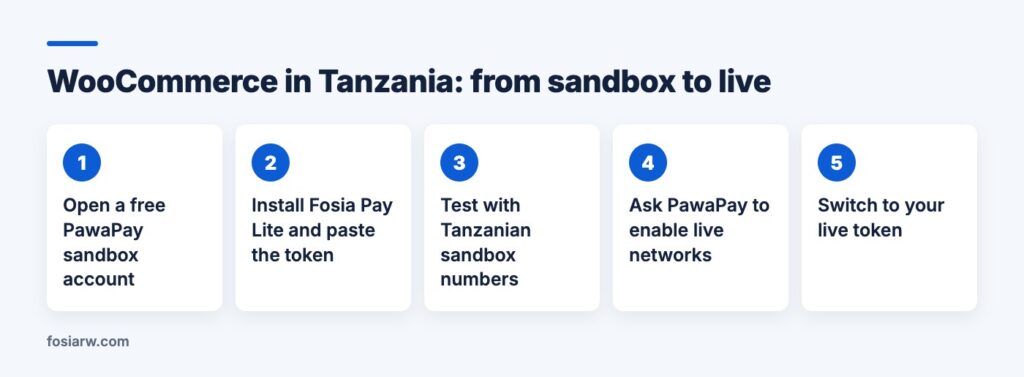
- Check the requirements. WordPress 5.8+, WooCommerce 5.0+, PHP 7.4+, HTTPS on your store, and a PawaPay merchant account. A sandbox account is free and needs no documents; PawaPay opens the live account after checking your business.
- Install Fosia Pay Lite from Plugins, Add New. The guided setup opens: choose Sandbox, paste your API token, and it is tested with PawaPay before it is saved.
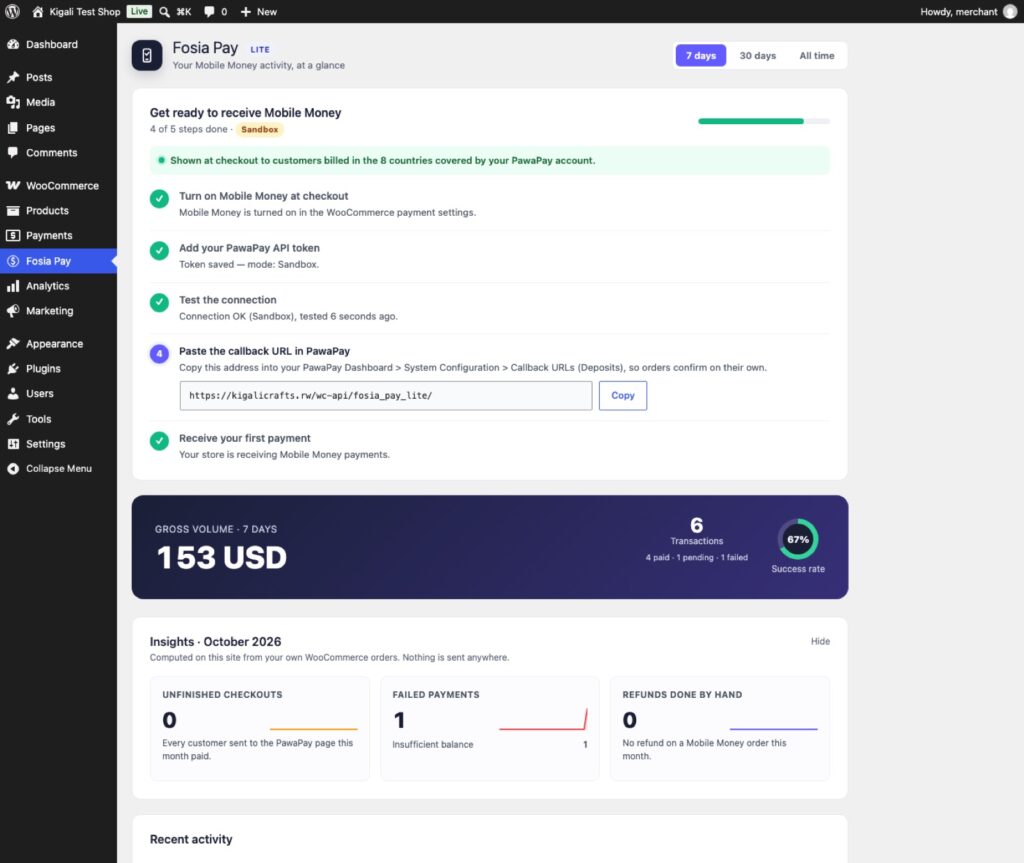
- Copy the callback URL into your PawaPay dashboard under System Configuration, Callback URLs (Deposits). Every payment is still checked with PawaPay (status, amount and currency) before an order is marked paid.
- Test with the numbers in the next section.
- Go live with your live token once PawaPay has enabled your Tanzanian networks.
A useful safety net: Fosia Pay Lite hides Mobile Money at checkout when it cannot work, for example for a billing country your PawaPay account does not cover. Its dashboard tells you whether customers see Mobile Money and why not.
Tanzanian test numbers to try
PawaPay’s sandbox test numbers complete or fail on purpose. They work only in sandbox. A test plan for Tanzania:
| Network | Paid | Fails on purpose |
|---|---|---|
| Airtel | 255683456789 | 255683456049 (insufficient balance) |
| Vodacom | 255763456789 | 255763456039 (payment not approved) |
| Yas (listed as Tigo) | 255713456789 | 255713456049 (insufficient balance) |
| Halotel | 255623456789 | 255623456029 (number not found on that network) |
For each paid number, check that the order turns to Processing on its own. For each failure, look at what your customer sees: with Fosia Pay Lite, never “Thank you” for an unpaid order, but “Payment failed” with the reason in plain words and “Try again”.
One live-only behaviour to know: PawaPay’s failure codes explain that some providers process only one transaction at a time, and a customer who did not enter the PIN in time may wait up to 10 minutes before starting a new payment. Tell customers to wait a moment rather than tapping “pay” again and again.
Lite or Pro for a Tanzanian store?
Fosia Pay Lite is free, with unlimited payments and no licence key: the customer chooses the network on PawaPay’s secure payment page and approves on the phone. It ships in English and French; other languages come through translate.wordpress.org.
Fosia Pay Pro ($19.99 a year or $59 once for life) helps when four networks meet one checkout: the operator is read from the phone number, the number is checked as it is typed, operator outage alerts show before paying, and a failed payment gets a one-tap retry with the reason. It also adds refunds from the WooCommerce order, payouts and payment links. FOSIA takes 0% commission on every plan; only PawaPay’s own fees apply.
Selling across East Africa too? Read our guides to M-Pesa on WooCommerce in Kenya and Mobile Money in Ghana and Uganda.
Frequently asked questions
Can I launch with Airtel Money, Mixx by Yas and Halopesa and add M-Pesa later?
Yes. Customers only see the networks enabled on your PawaPay account, so you can add Vodacom M-Pesa when PawaPay enables it, without changing the plugin.
Is Mixx by Yas the same network as Tigo Pesa?
PawaPay’s markets page lists the operator as “Yas (formerly Tigo)”, and its technical documentation still uses a Tigo code for it. Fosia Pay’s WordPress.org listing names the wallet Mixx by Yas.
Can a customer in Zanzibar pay?
Payment depends on the customer’s network and number, not on the city. A customer with a wallet on one of your enabled Tanzanian networks can pay.
Can I sell to Kenya and Tanzania from one store?
Yes, Fosia Pay covers both countries, each with the networks enabled on your PawaPay account. Note that PawaPay lists M-Pesa in Kenya as Enterprise only too.
Ready to test? Download Fosia Pay Lite for free and try the Tanzanian test numbers today, follow the PawaPay setup guide, read the Fosia Pay guide, or compare plans on the pricing page.